How to create an HDR EXR image
An EXR file is one of the best sources you can have for an HDR photo. It stores the full range of light of the image, far beyond what a normal photo keeps, and HDRJPG turns it into files every browser can show. This guide shows how to create one, whether your photo is already HDR or not.
Why 32 bits
A normal photo stores each color channel in 8 bits: 256 levels, from black to the brightest white the file can hold. Anything brighter than that white is lost. 16-bit images have finer steps, but the same ceiling.
An HDR image needs room above that white: for a light bulb, a neon sign or the sun, which on an HDR screen should shine brighter than a white page. 32-bit images store each channel as a floating point number, with no ceiling, so they keep that extra light. EXR is the file format made for them.
If you are already working in HDR
Many modern cameras and editing workflows produce HDR images. If yours is already HDR, make sure it is in 32-bit RGB and save it in EXR format. That is all.
If your photo is not HDR, you can expand its dynamic range while you edit it. That opens up new creative possibilities. Here is how.
Convert a normal image to HDR
Programs like Adobe Photoshop and Affinity Photo support HDR, and can turn a normal image into an HDR one. If you like retouching, you will enjoy this.
You need a screen that can show HDR, or you will not see the results. All recent Apple computers have HDR displays, and HDR photos look especially spectacular on Apple's XDR displays, which reach 1600 nits. On Windows, make sure your monitor supports HDR and that HDR is turned on in the display settings.
With Adobe Photoshop
First, enable HDR:
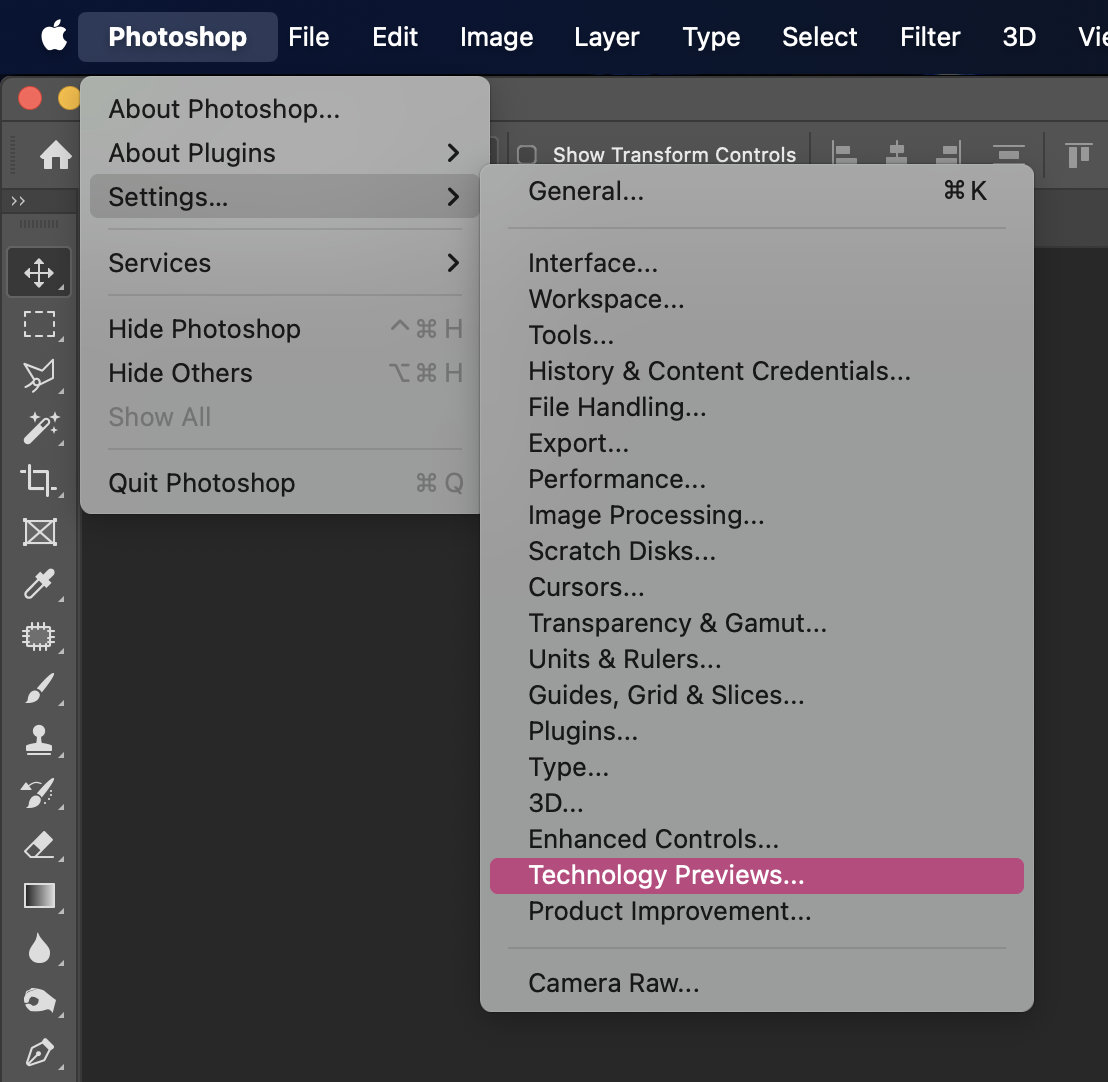
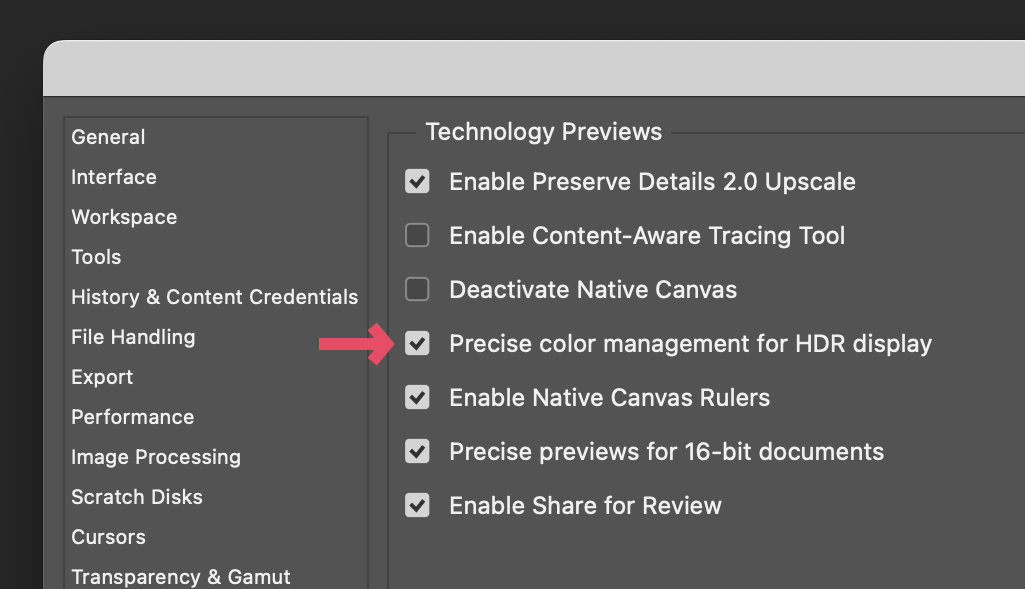
Then change the image to 32 bits per channel:
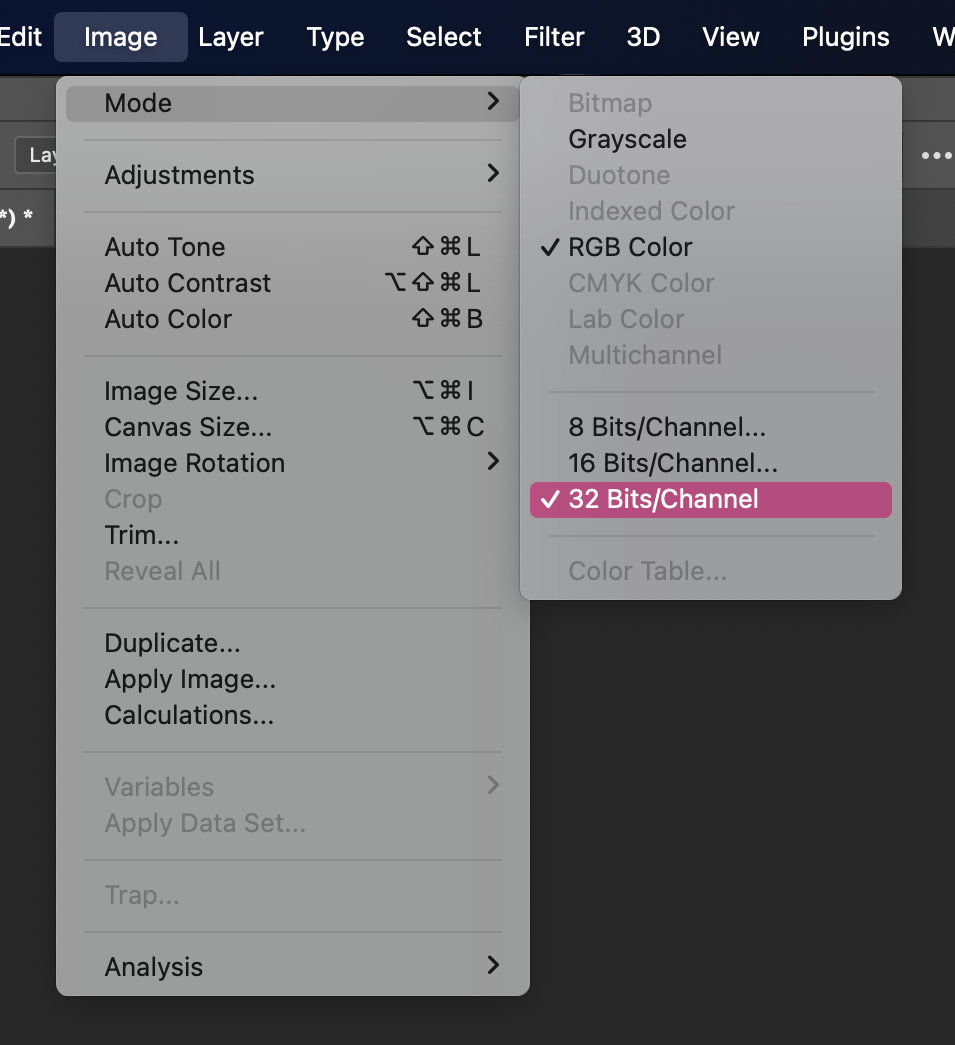
Now you have the extended dynamic range of HDR to work with. For example, you can raise the exposure of the highlights with a filter from Filter > Camera Raw Filter:
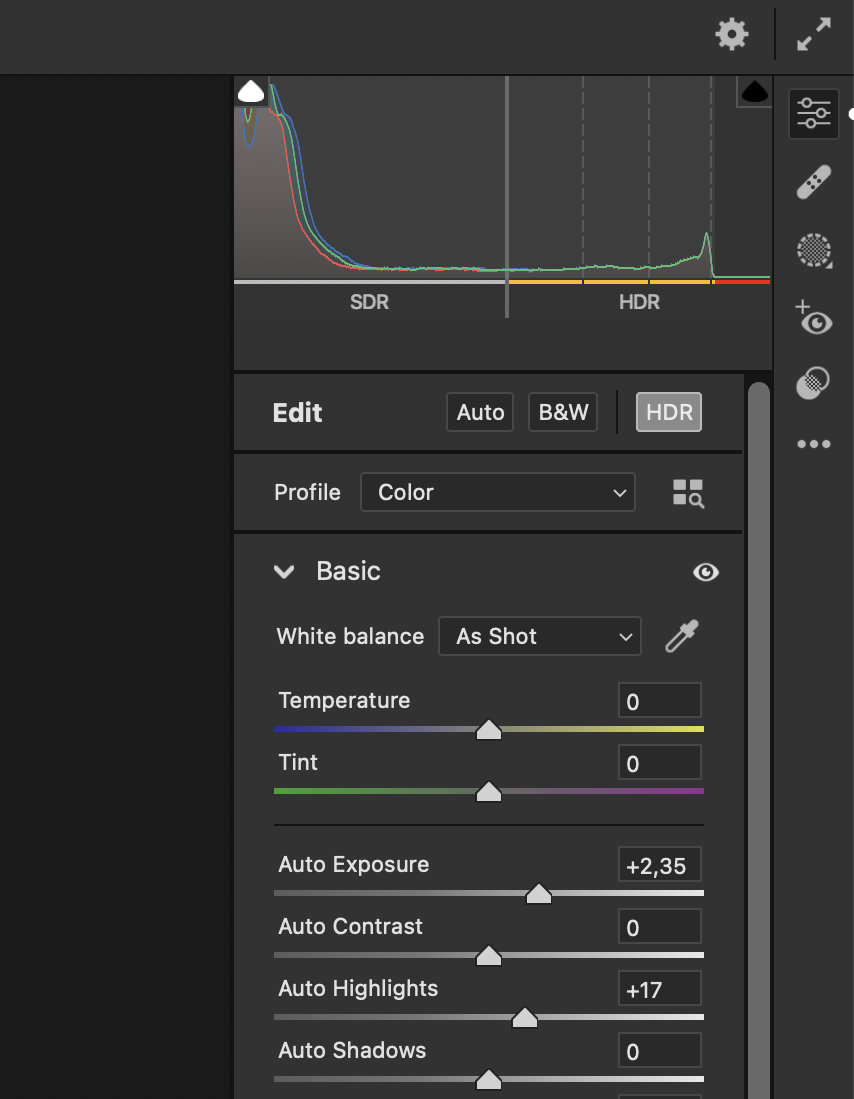
When your HDR image is ready, save it in EXR format.
With Affinity Photo
First, convert your photo to 32 bits per channel and RGB:
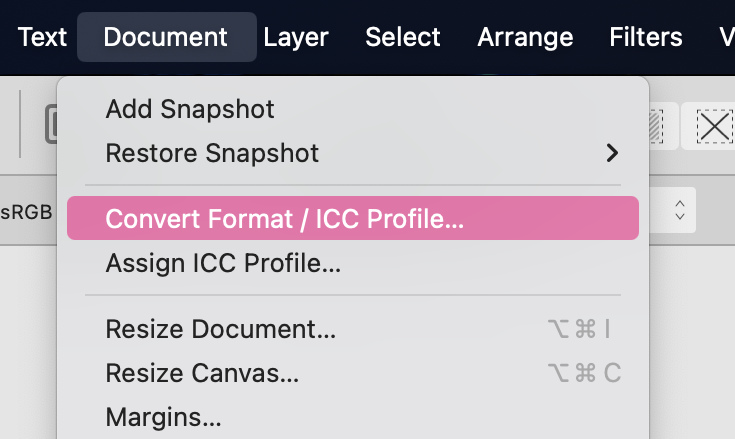
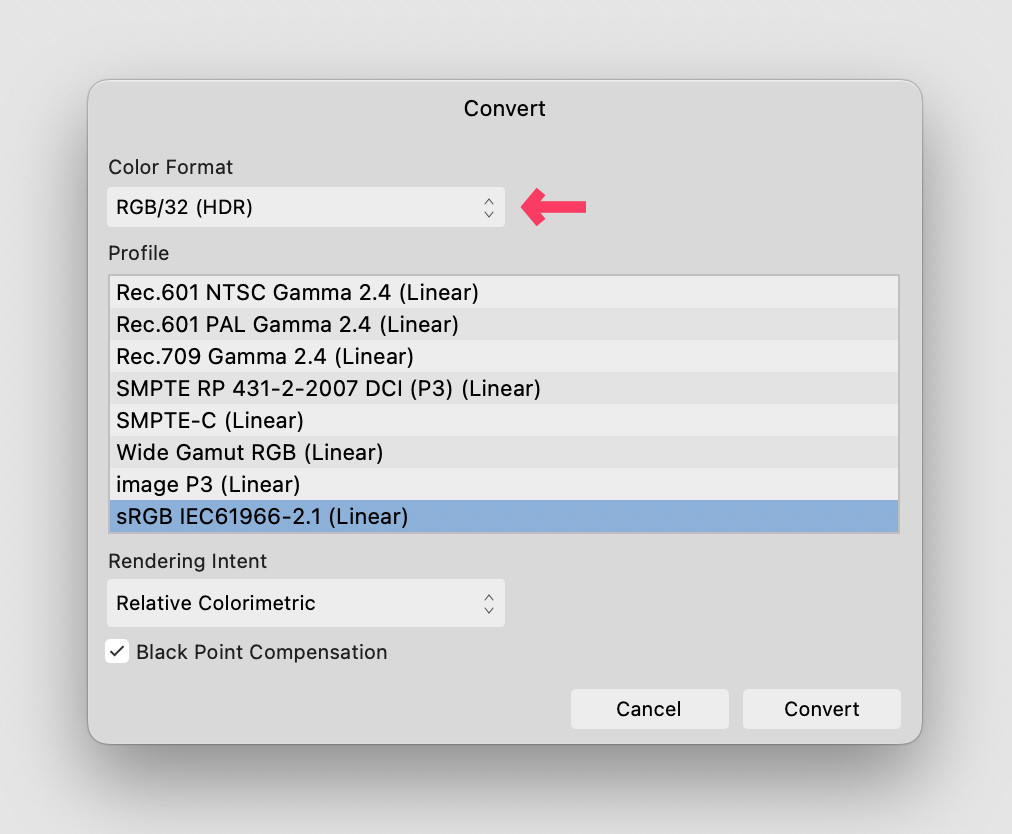
Turn on HDR display in the 32-bit Preview panel, if it is not on yet:
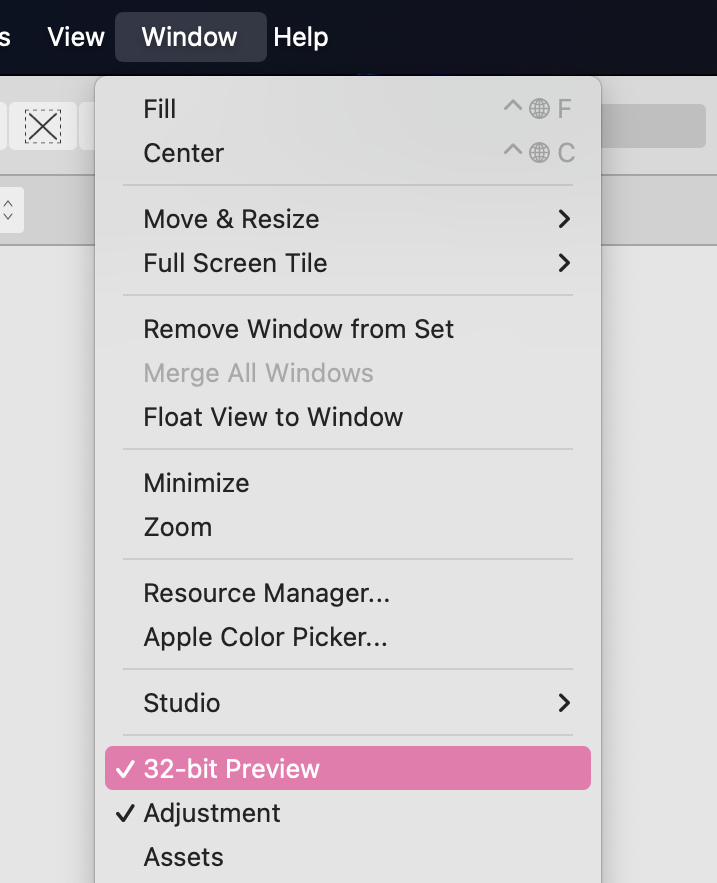
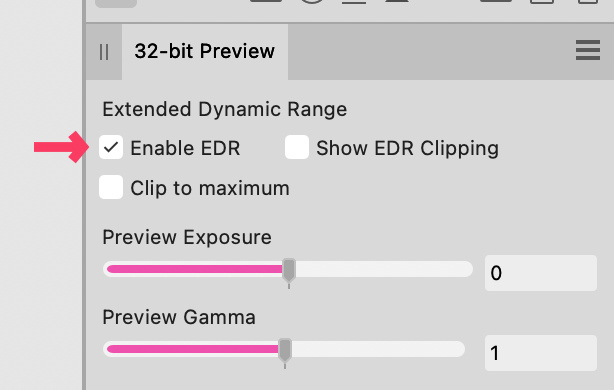
You are now working in HDR. One of the many ways to extend the dynamic range of your image is a Shadows / Highlights adjustment layer:
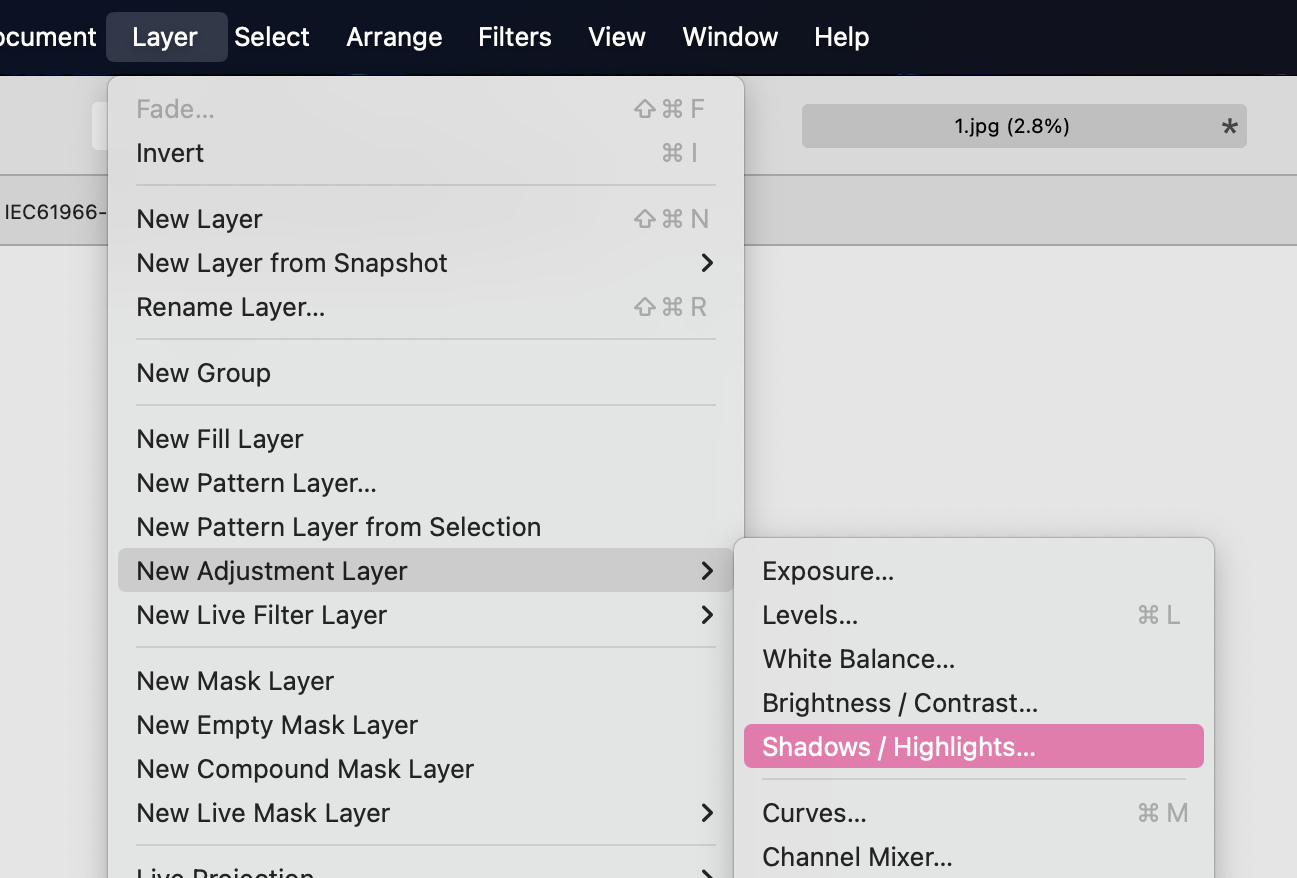
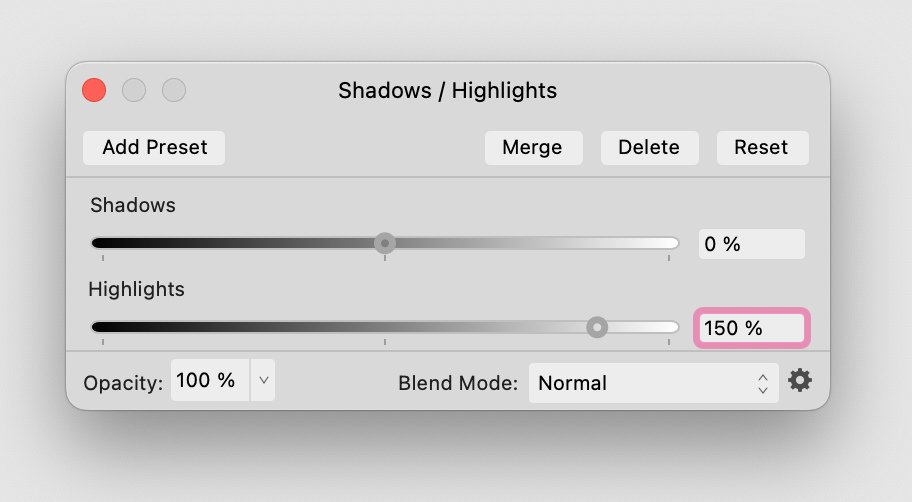
When your HDR image is ready, save it in EXR format.
Ideas for using HDR
The HDR effect works best where you use it on purpose: raise the exposure in specific parts of the image to make neon lights glow brighter, to make sunlight dazzle, or to make a rim light set a silhouette apart. The examples page has more ideas, each photo with a slider between its standard and HDR versions.
Put your EXR on the web
No browser displays EXR files, so the last step is converting it. Upload your EXR at hdrjpg.com/try, or send it through the HDRJPG API, and you get the same photo as a gain map JPEG, an HDR AVIF and an HDR MP4, each one still HDR. No single one of those formats shows HDR in every browser. Published together, with HDRJPG's recommended embedding, they show your photo in HDR in almost every browser on any HDR screen, and as a normal photo everywhere else. The formats guide explains why.
See it with your own photo
Convert an iPhone, Android or EXR photo for free, or let the API do it for every photo on your site: the first 300 conversions every month are free.