How to keep the HDR from an iPhone photo on the web
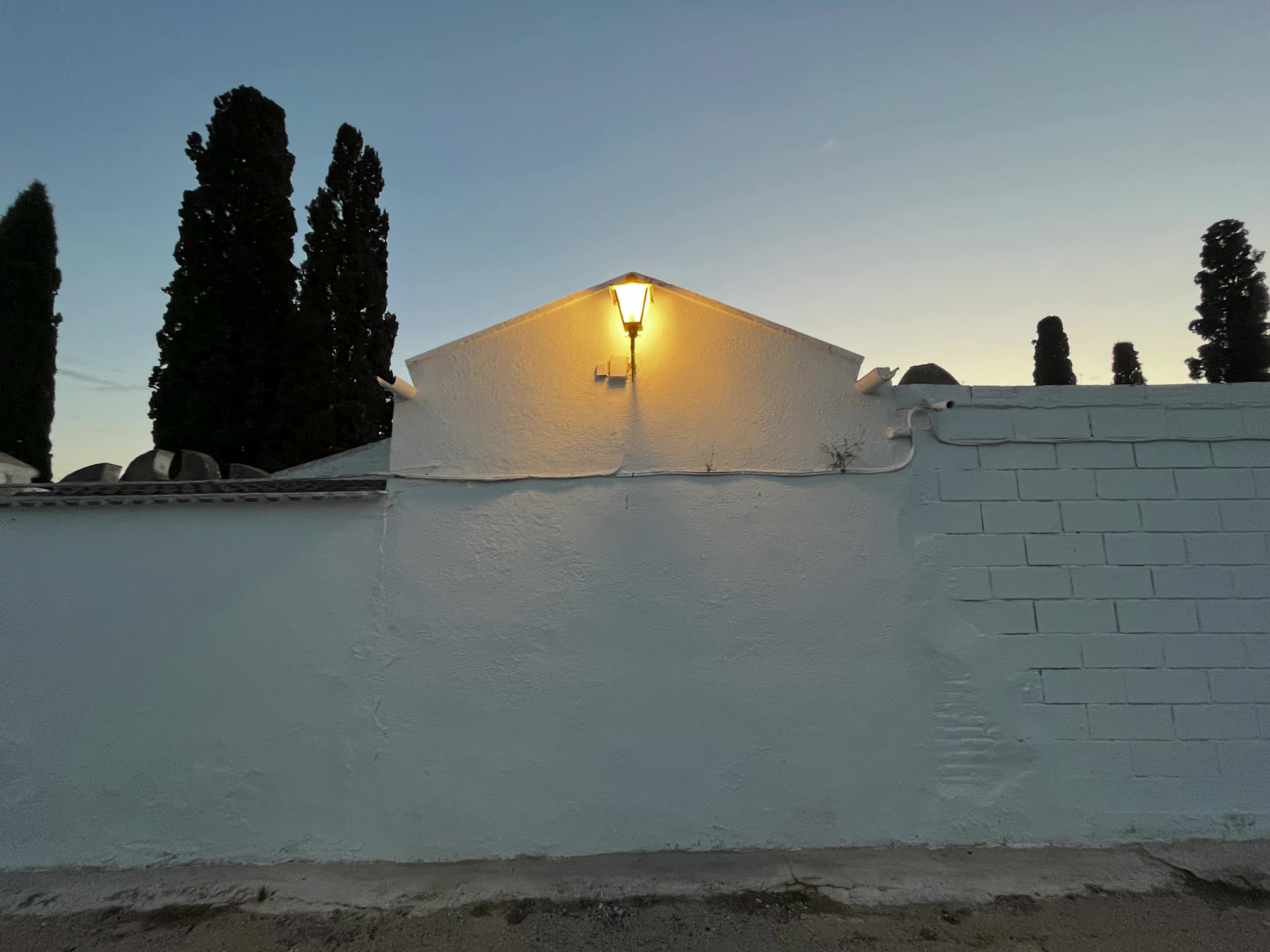

Since the iPhone 12, the Camera app saves HDR photos. Next to the normal picture, it stores a gain map: a second, small image that tells an HDR screen how much brighter each part should be. That is why a sunset looks so bright in the Photos app on the phone.
Getting that photo onto a web page with its HDR intact is harder than it should be.
Why the obvious ways lose the HDR
Uploading the HEIC file. iPhones save photos as HEIC by default. Safari displays HEIC, and shows its HDR since Safari 26. Chrome, Edge and Firefox do not display HEIC at all. For most of your visitors the image would be missing.
Exporting or sharing it as a JPEG. Converting HEIC to JPEG is easy. But many converters, upload forms and photo editors only write the standard picture. The gain map gets dropped. What comes out is an ordinary JPEG that looks fine but has lost its HDR. Even a conversion that keeps a gain map may write it in a different variant from the one the iPhone used, and not every app reads every variant.
Screenshots, messaging apps and "optimize for web" tools. All of them re-encode the image, and almost always lose the gain map.
What you want instead: the same photo in several formats
No single file shows HDR in every browser. A JPEG with an embedded gain map comes closest to working everywhere: it uses the same idea as the iPhone's own HDR, and every browser can open it. But only Chrome, Edge and Safari 26 or later show its HDR. Firefox and older Safari show the standard picture.
So publish the photo as a set: a gain map JPEG, an HDR AVIF and a short HDR MP4, embedded with HDRJPG's recommended markup. Each browser then uses a version it can show in HDR, and screens without HDR get a normal photo. That is how the photo reaches the most visitors in HDR. The formats guide explains each format.
Three ways to convert an iPhone photo
1. HDRJPG, online
- Get the original photo off the phone without converting it. AirDrop to a Mac usually sends the HEIC as it is. In Photos on a Mac, File > Export > Export Unmodified Original does the same. Avoid sending it through a messaging app first.
- Upload the HEIC at hdrjpg.com/try. HDRJPG reads the iPhone's gain map, rebuilds the HDR image from it, and returns a gain map JPEG, an AVIF, a JPEG XL and an MP4. This is more than a change of file format: each output file keeps the HDR of the original.
- Download the files and publish them as they are, with the embedding markup. Do not let your website builder resize or recompress them. See why HDR photos look flat after uploading.
Some photos have no HDR data: older photos, some edited copies, screenshots. For those, HDRJPG expands the standard photo to HDR instead, unless you turn that option off in the settings.
2. Lightroom or Camera Raw
Open the HEIC in Lightroom or Adobe Camera Raw and turn on HDR editing. Export as JPEG with Enable HDR Output and Maximize Compatibility both checked. The second option writes the gain map. This is the route to take when you want to edit the photo anyway. It is one photo at a time, though, and it gives you a gain map JPEG only, which most browsers outside Chrome, Edge and recent Safari show without HDR. To reach the others, run the exported JPEG through HDRJPG to get the AVIF and MP4 versions too.
3. The API, for many photos
If you run a portfolio site, a shop or an app where people upload iPhone photos, convert them on upload with the HDRJPG API. Send the HEIC and get back each size your site uses as a gain map JPEG, an AVIF and an MP4, plus JPEG XL if you want it, all still HDR. Put them on the page with the embedding markup, and the photo shows in HDR in almost every browser, on phones and computers alike, with a normal version for screens without HDR. The PHP SDK does the conversion in one call:
$client = new \TinCat\HdrjpgSdkPhp\Client('YOUR_API_KEY');
$client->convert(
    'IMG_1234.HEIC',
    [
        ['width' => 1600, 'format' => 'jpeg-xt'],
        ['width' => 800, 'format' => 'jpeg-xt'],
        ['width' => 1600, 'format' => 'avif'],
        ['width' => 1600, 'format' => 'mp4'],
    ],
    '/path/to/output'
);
Checking the result
Open the published page on an HDR screen in several browsers: Safari on an iPhone, iPad or Mac, Chrome, and Firefox. The bright parts of the photo should glow brighter than the white page around them. If they do in Chrome but not in Firefox, the page is serving only the gain map JPEG: add the AVIF and MP4 with the embedding markup.
See it with your own photo
Convert an iPhone, Android or EXR photo for free, or let the API do it for every photo on your site: the first 300 conversions every month are free.